

Choose instructions for your device
Use the iPhone sequence if your phone runs iOS and the Android sequence if it uses Google Play. Each illustrated sequence follows the same connection from the store to the connected screen. Read the captions in order before changing a network setting. The controls on a newer app version may appear in another position.
Before changing the connection
A VPN changes how a device routes traffic. Check whether you already use a work profile or a connection required by your organisation. On a managed phone, follow the settings permitted for that device. When ordinary browser access works, you can continue directly to the account or period page you wanted.
Read the connection indicator
The third illustration shows the app before a connection is active. The fourth shows the active state. Wait for the app itself to report its status before returning to the browser. An icon on the home screen alone tells you only that an application is present.
Return to the same browser tab
After changing a connection, reopen the original tab and check the page address. If the page stopped loading during the change, reload once. Use the Download page for source and file checks, or Account Access Help if the issue concerns a particular sign-in route.
iPhone connection steps
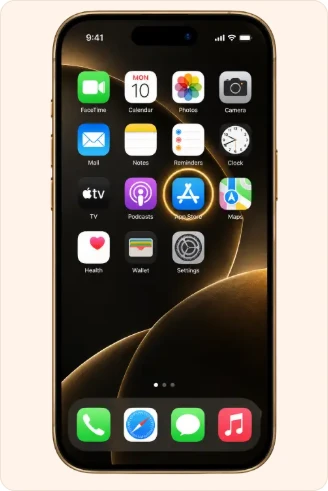
1. Open the App Store. 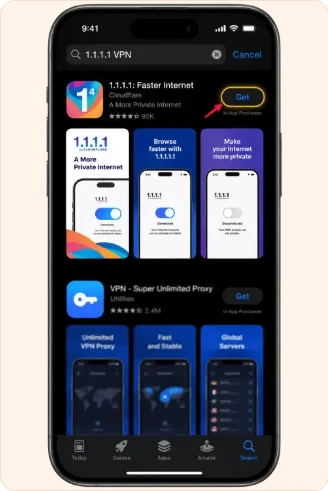
2. Find the 1.1.1.1 app by Cloudflare and check the listing. 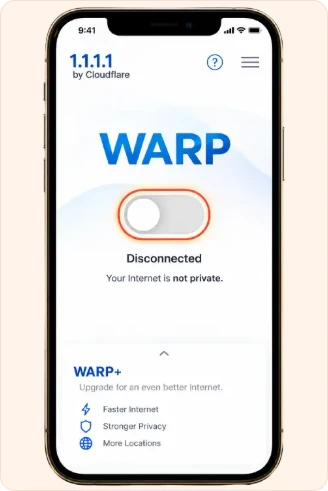
3. Open the app and review the connection request on your device. 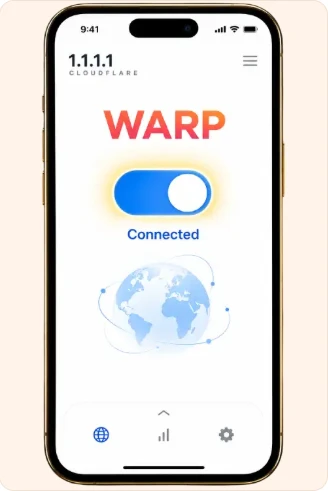
4. Switch on WARP and check the connected state.
Android connection steps
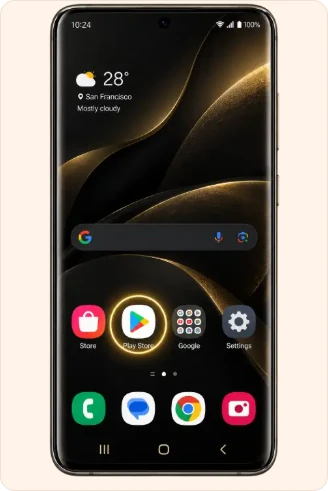
1. Open Google Play. 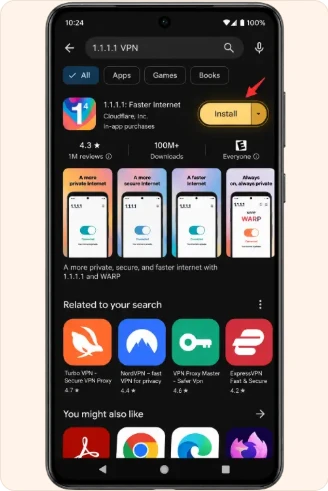
2. Find the 1.1.1.1 app by Cloudflare and check the listing. 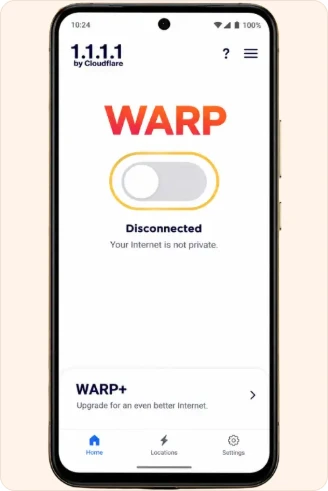
3. Open the app and review the connection request on your device. 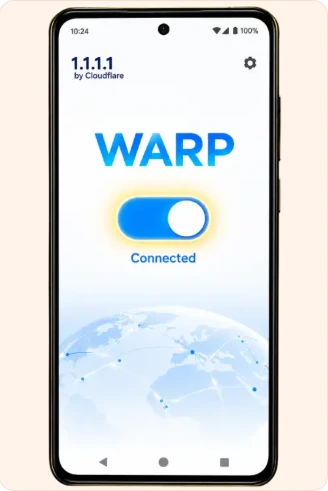
4. Switch on WARP and check the connected state.